Linking an Athlete Account to a Coach Account
ВидеоинструкцияHow an athlete adds their coach
How to link existing coach and athlete accounts, if both were registered on the platform independently of each other.
Step 1. Go to the "Coaches" section
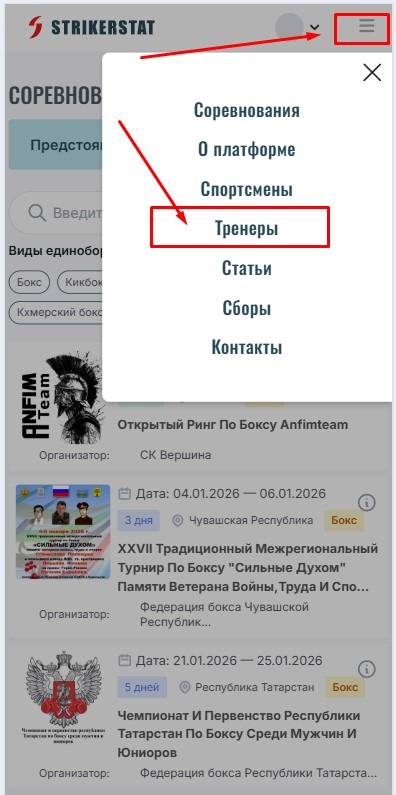
Sign in to your account using the login form in the top right corner — once you are signed in, your photo will appear there. To add a coach, click the "Coaches" button in the menu.
Step 2. Find the coach and submit a request
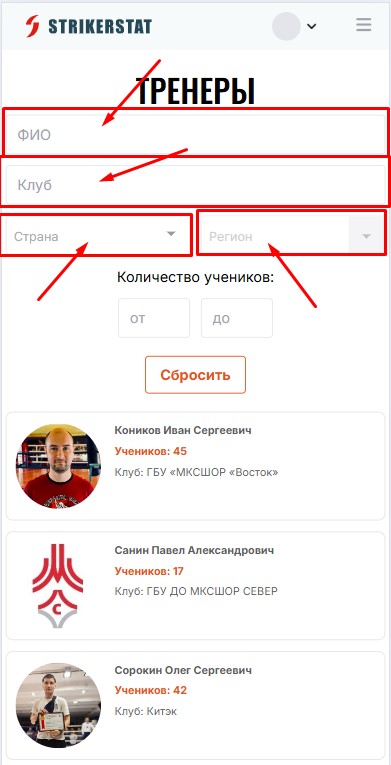
In the "Coaches" section, find your coach by:
- Full name
- The name of the club where they teach
- Region
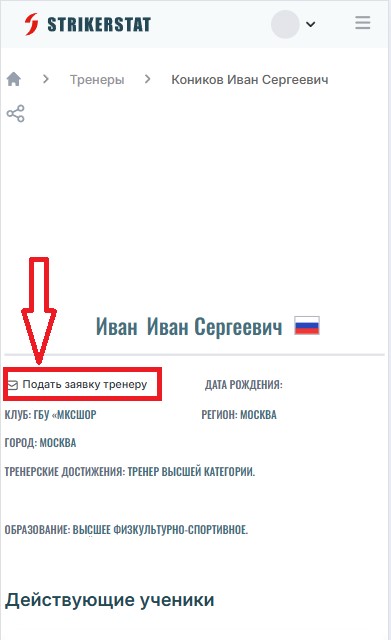
Once you have found your coach, click "Submit Request to Coach" — this sends them a request to add you as a "Student."
Step 3. What happens after approval
As soon as the coach approves the request, they will appear in the "Career" section of your profile. From that point on, the club, sports community and sports school data in the "Career" section can no longer be edited directly — it is automatically synced from the coach's page.
If it was the coach who sent the request, go to the "Requests" section in your "Dashboard" and approve it there.
Step 4. Unlinking a coach
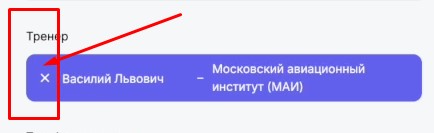
If you need to change coaches or unlink your account, in the "Career" section click the cross next to the coach's name. The data that was synced from their page (club, sports school, sports society) will then disappear, and you will appear on the coach's page in the "Former Students" section.