Creating an Olympic Tournament
ВидеоинструкцияCreating an Olympic multi-day competition
How to create a multi-day competition using the Olympic system — we walk through the whole process step by step.
Step 1. Start creating the tournament
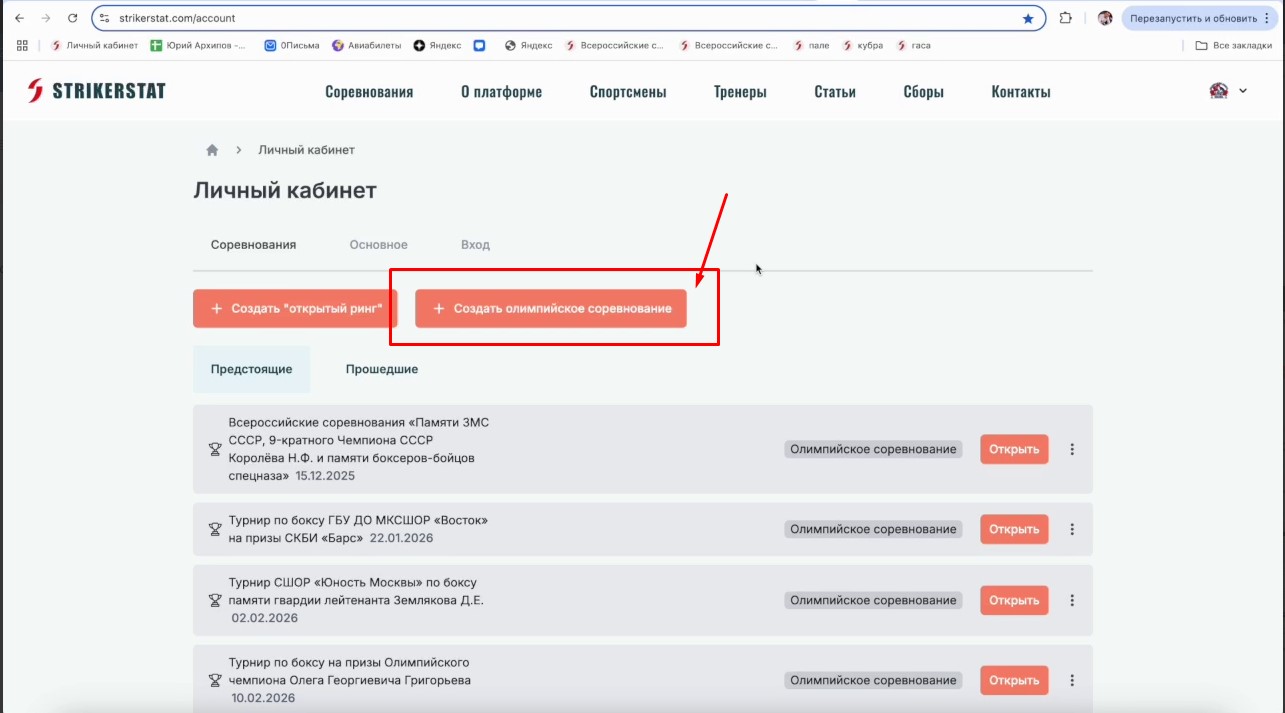
In your organizer dashboard, click the "Create Olympic Competition" button.
Step 2. Fill in the required fields
Next, fill in the required fields, marked with an asterisk, one at a time:
- Tournament cover photos (up to 6 can be added, one is required)
- Tournament name
- Country, region and city where it will be held
- Venue name and address
- Tournament start and end dates
- Application deadline (the date after which entries can no longer be submitted)
- Date of the first day of bouts
- Number of rings
- Bracket size limit (for example, with a limit of 16 people, a bracket cannot hold more)
Step 3. Specify the weight categories
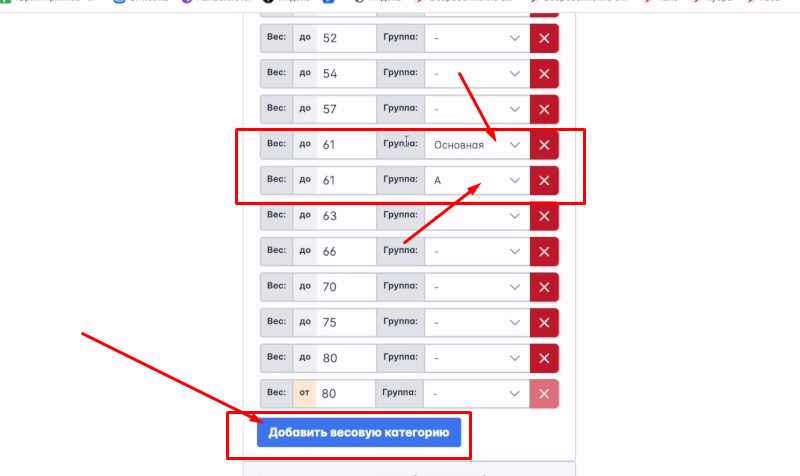
Specify all weight categories, as well as the age and gender of participants. Important: if you are adding a competition that has already taken place, the system will automatically populate the weight categories in effect under the Boxing Federation's rules for the year in which it was held.
You can add your own weight category using the "Add Weight Category" button. If many participants box in one category, it can be split into groups — a "Main Group," Group "A," Group "B" and so on.
Step 4. Choose the format and entry cost

Choose who will compete first from the 4 available options, and indicate whether entry to the tournament is paid or free.
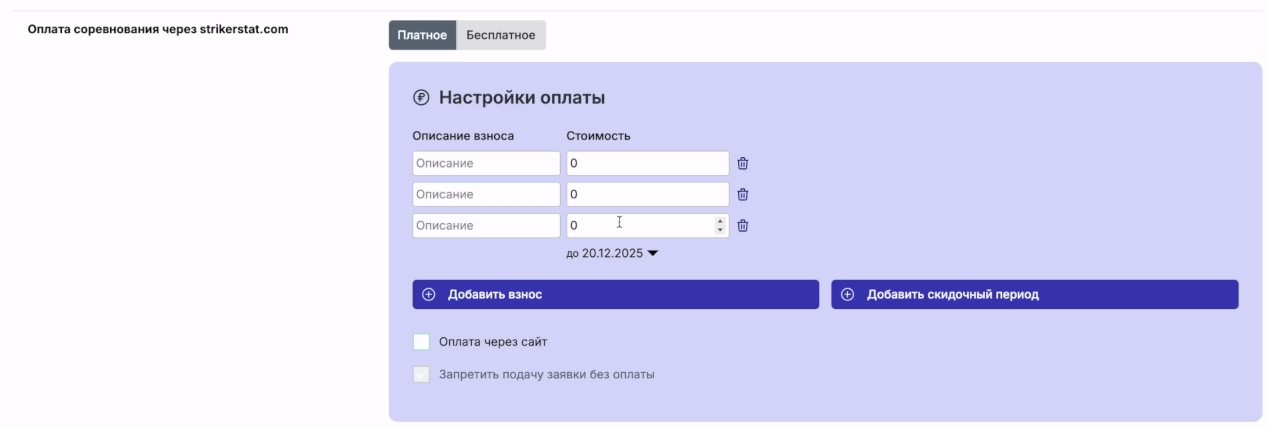
If you are listing a paid competition, you can set a different entry fee for each age group.
Step 5. Enter the organizer's contact details
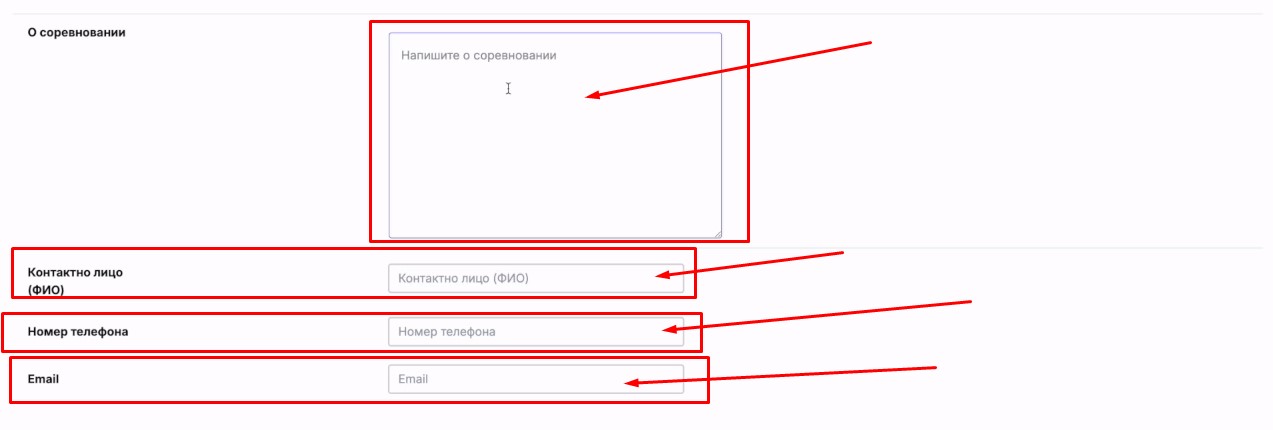
Enter a description of the tournament and your contact details as the organizer — these will be visible on the competition page:
- Full name of the contact person
- Phone number
- Email address
Step 6. Save the tournament

Once you have filled in all the details, click "Save Competition."
Editing and deleting a tournament
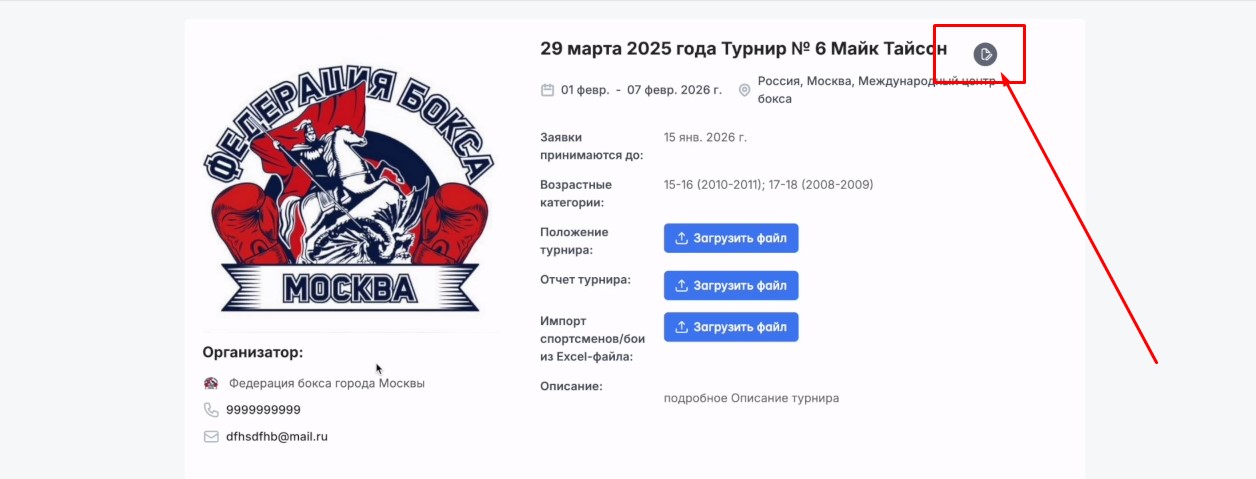
After saving, you are automatically taken to the competition page. To make changes to a tournament you have already created, use the "Edit Competition" button.
To delete a competition, go to your "Dashboard" via the icon in the top right corner, select the desired competition from the list, click the ellipsis, and select "Delete." Important: a tournament can only be deleted if it has no bouts, no brackets have been created, and there are no results.