How a Coach Can Link a Student Athlete's Account
ВидеоинструкцияHow a coach links an account with a student
We cover synchronizing coach and athlete accounts from the coach's side — using two methods.
Method 1. The coach sends the request themselves
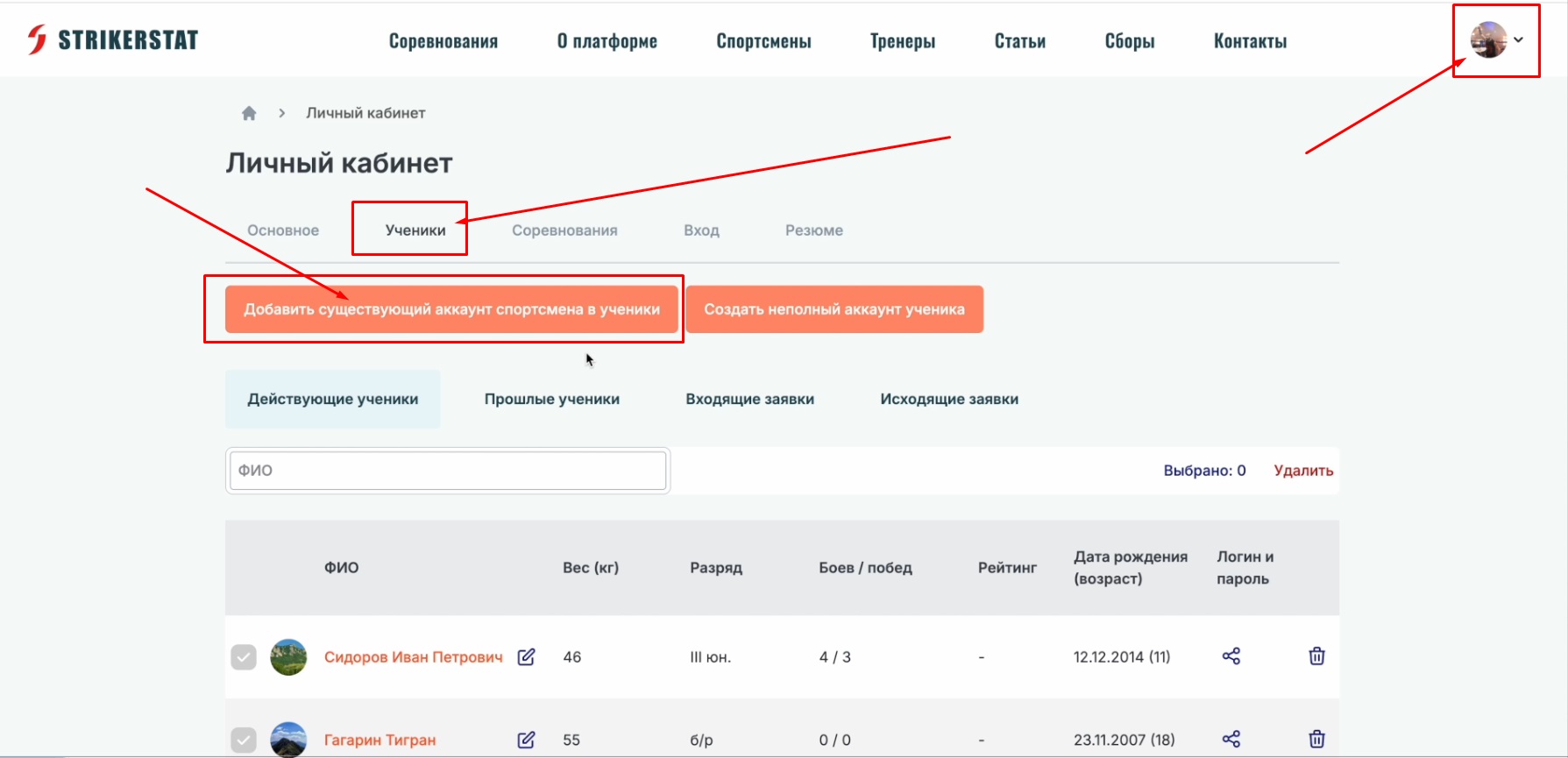
Log in with your coach account and go to the "Students" tab in your personal account. Here we'll cover the "Add an existing athlete account as a student" function — for creating a new, incomplete student account, see the article "How a Coach Can Create a Student Account".
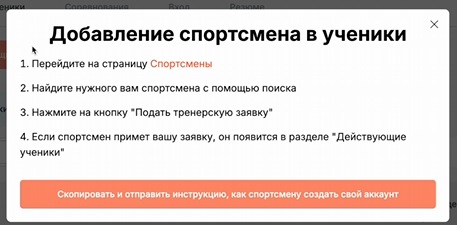
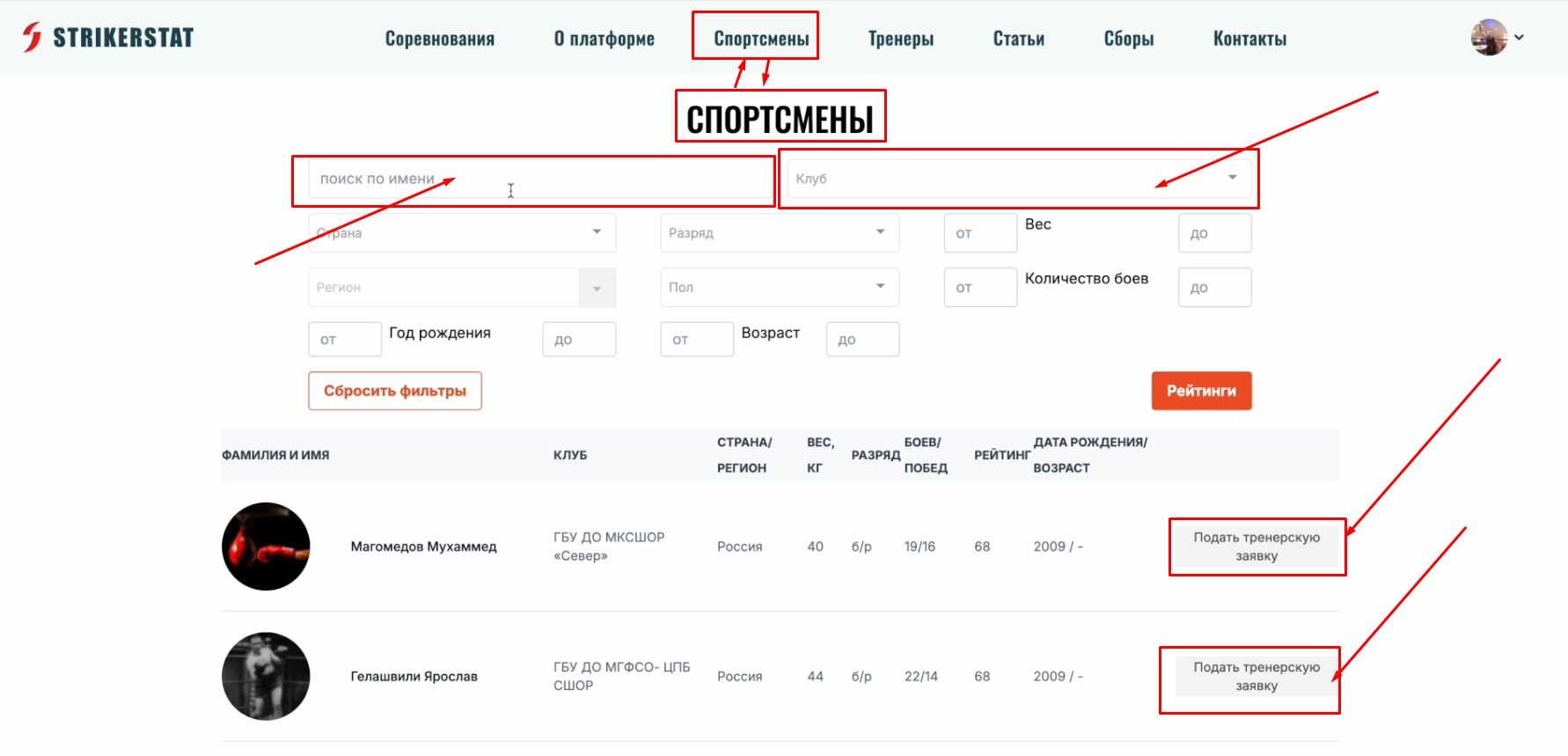
After clicking the button, the workflow opens: go to the "Athletes" page, find the athlete you need using search, and click "Send Coach Request." If the athlete accepts the request, they will appear in the "Current Students" section.
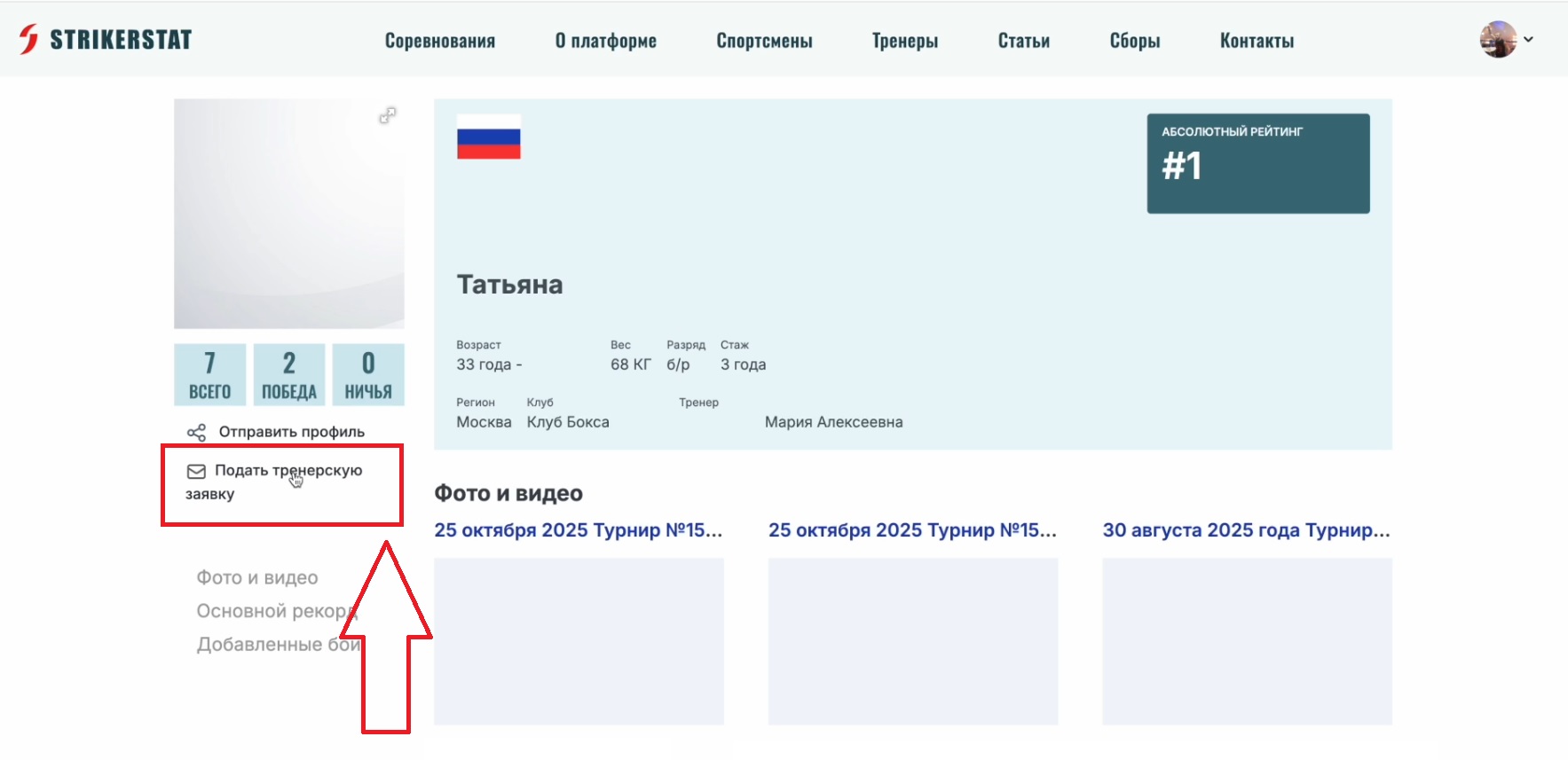
This can be done in two ways: via the "Athletes" button in the top menu, with search by full name or club name, or directly from the athlete's page, by clicking the same button.
Tracking requests
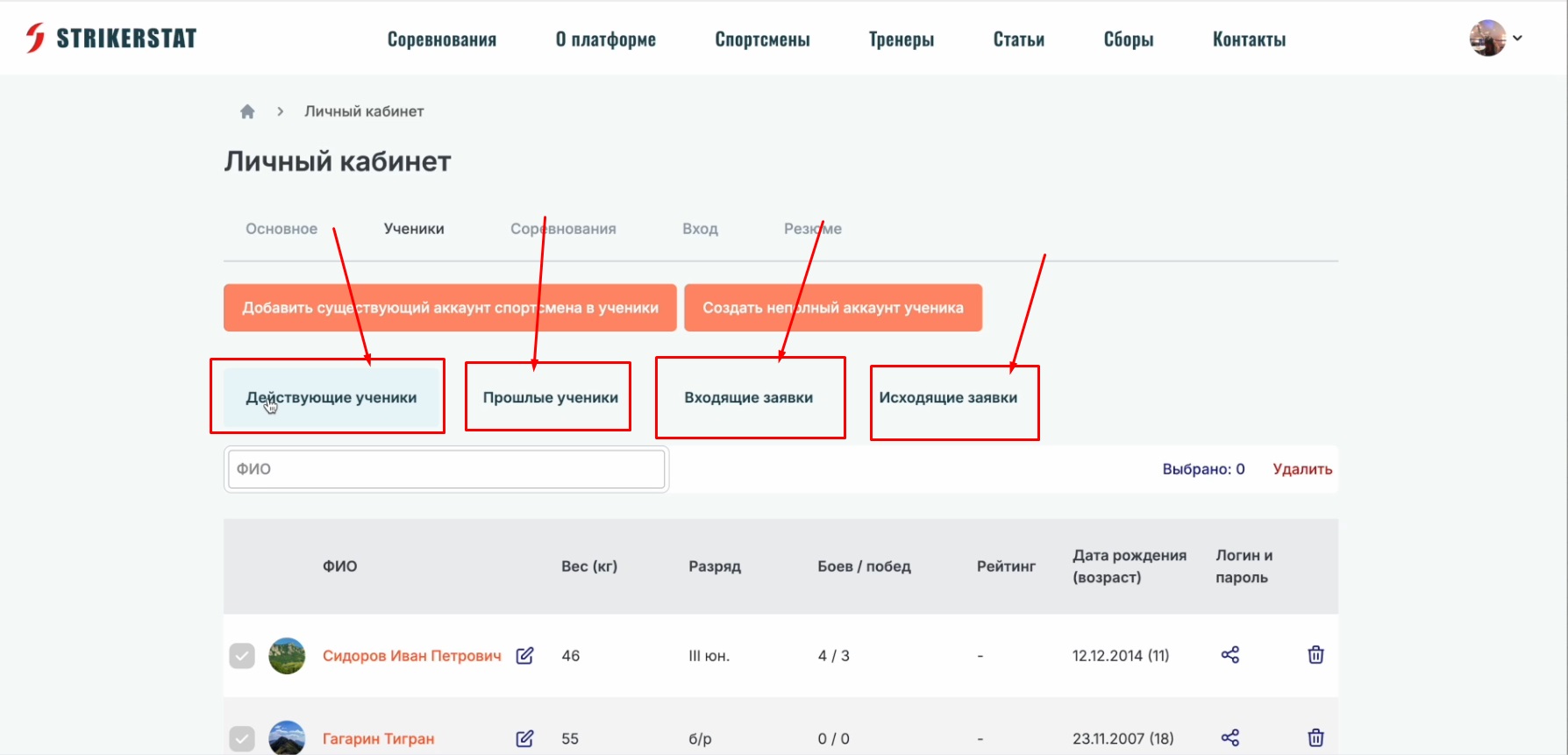
After sending, the request will appear in the athlete's personal account, and you can track the synchronization status in the coach's personal account:
- "Current Students" — athletes who have approved the request. Only athletes from this list can be entered in tournament applications on the coach's behalf.
- "Past Students" — athletes previously linked to the account who have since removed the coach information.
- "Incoming Requests" — requests from athletes, which can be accepted with a single click.
- "Outgoing Requests" — the list of athletes to whom the coach has sent a linking request.
Method 2. The student sends the request
An athlete can send the request themselves, from their own account — the coach then simply needs to accept it in the "Incoming Requests" tab. The mechanism works similarly to adding friends on social media.