Building Tournament Brackets for an Olympic-System Tournament
ВидеоинструкцияBuilding brackets for the Olympic draw
How to manually build a tournament bracket for a multi-day competition and make adjustments to it.
Step 1. View the athlete's card
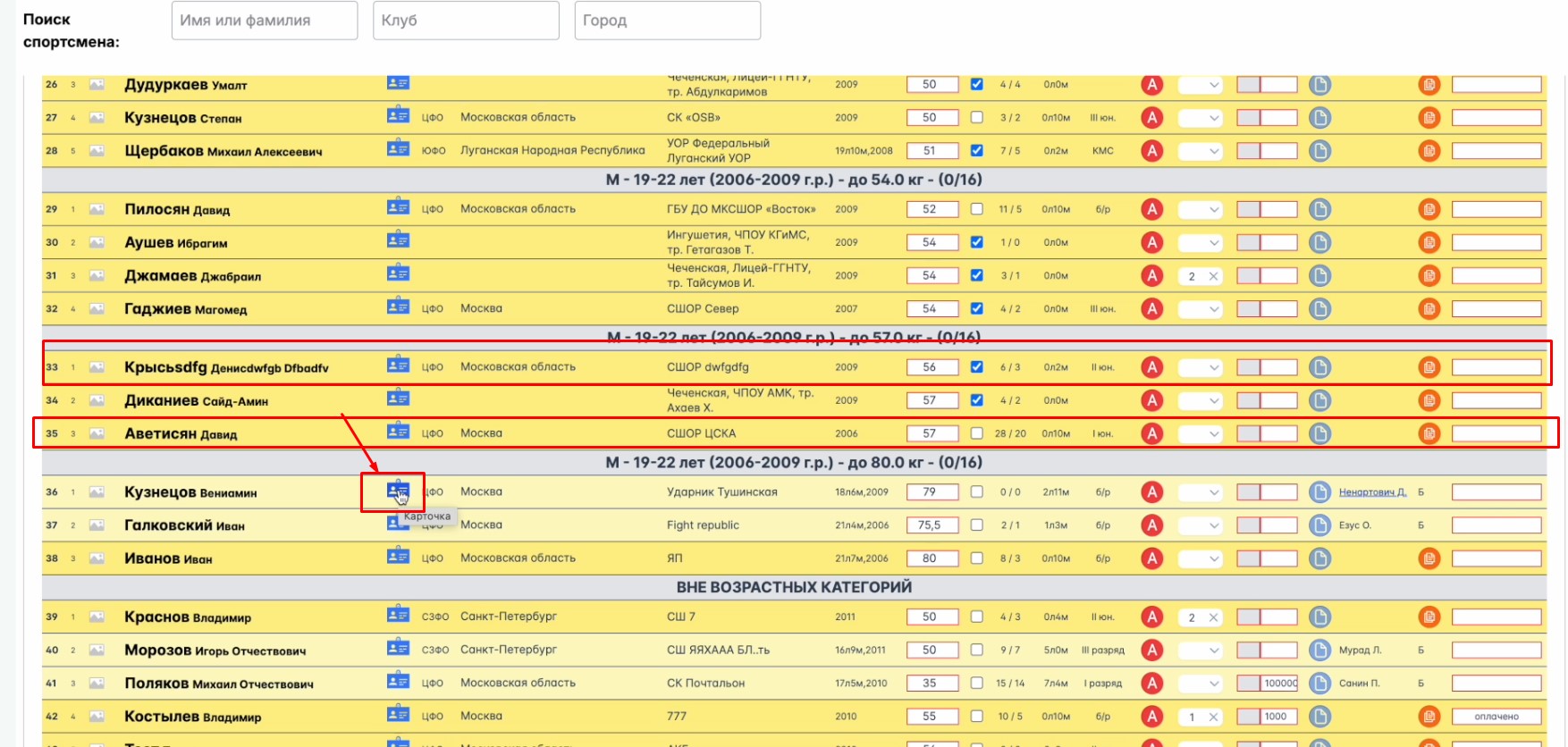
After applications are submitted, all athletes appear in the "Pending Approval List." To see detailed information, click the "card" icon next to the athlete's data.
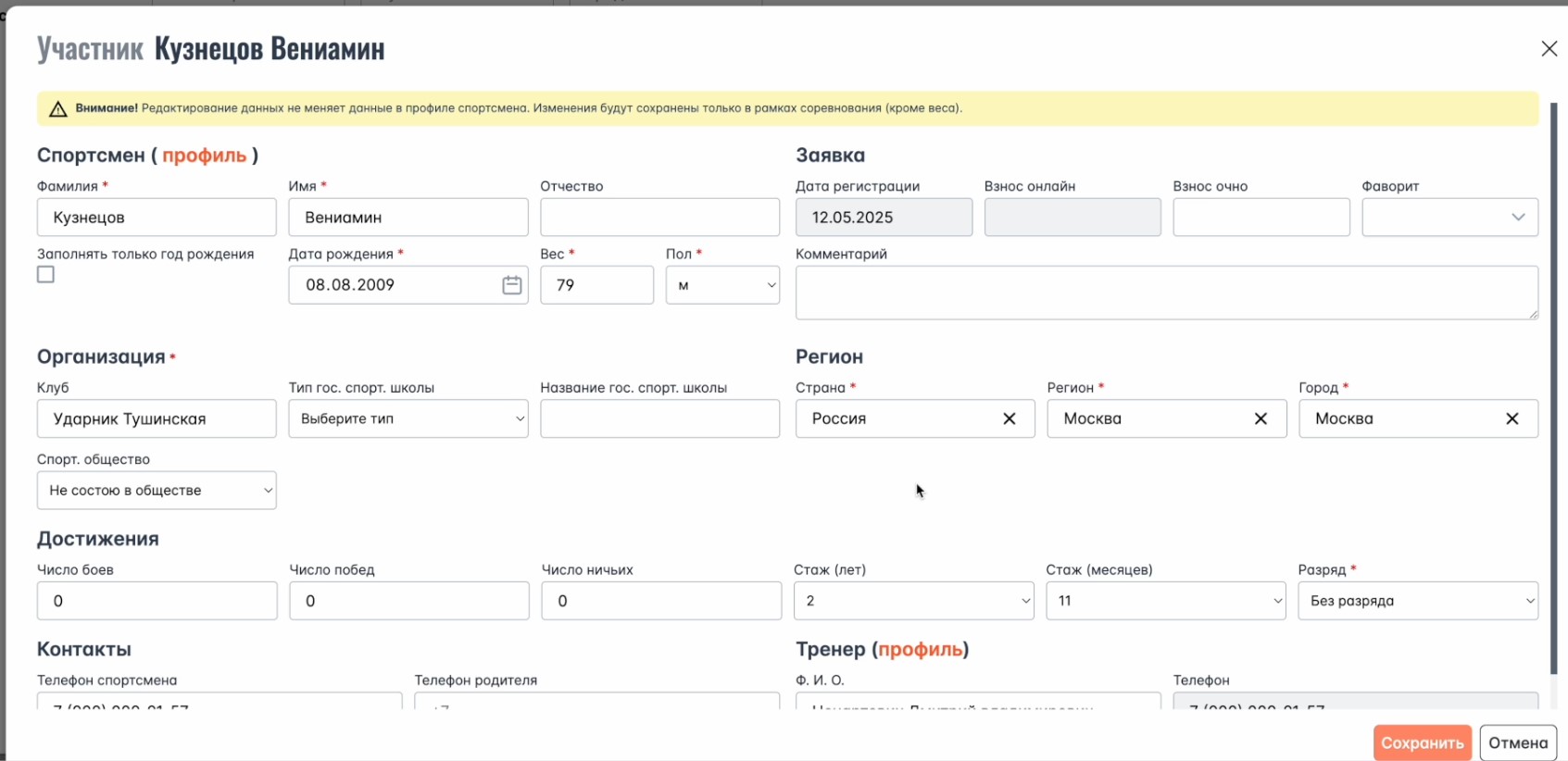
Detailed information about the athlete will open.
Step 2. Distribute participants into the bracket
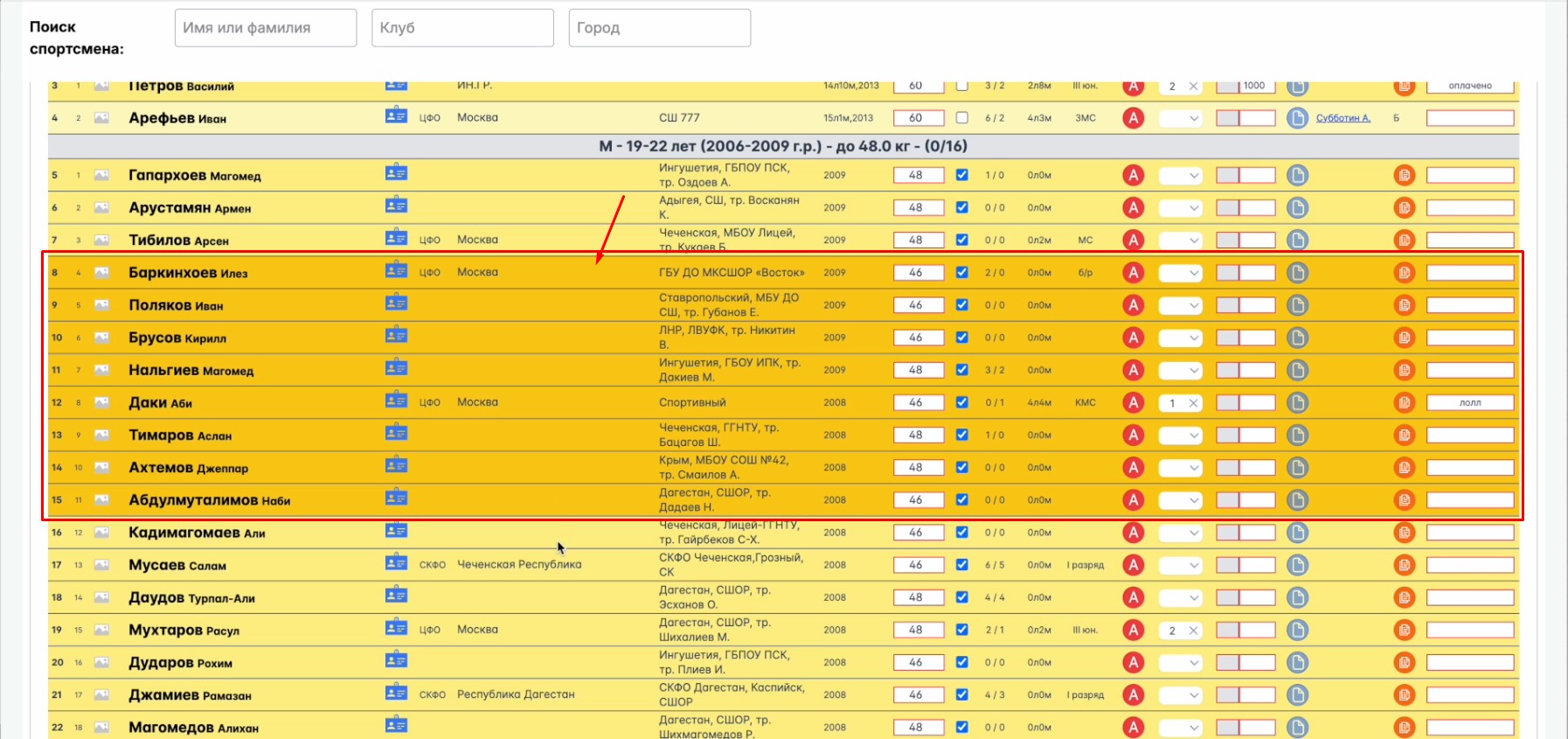
To distribute participants into categories manually, first select them in the table — click an empty spot in the row with the athlete's data.
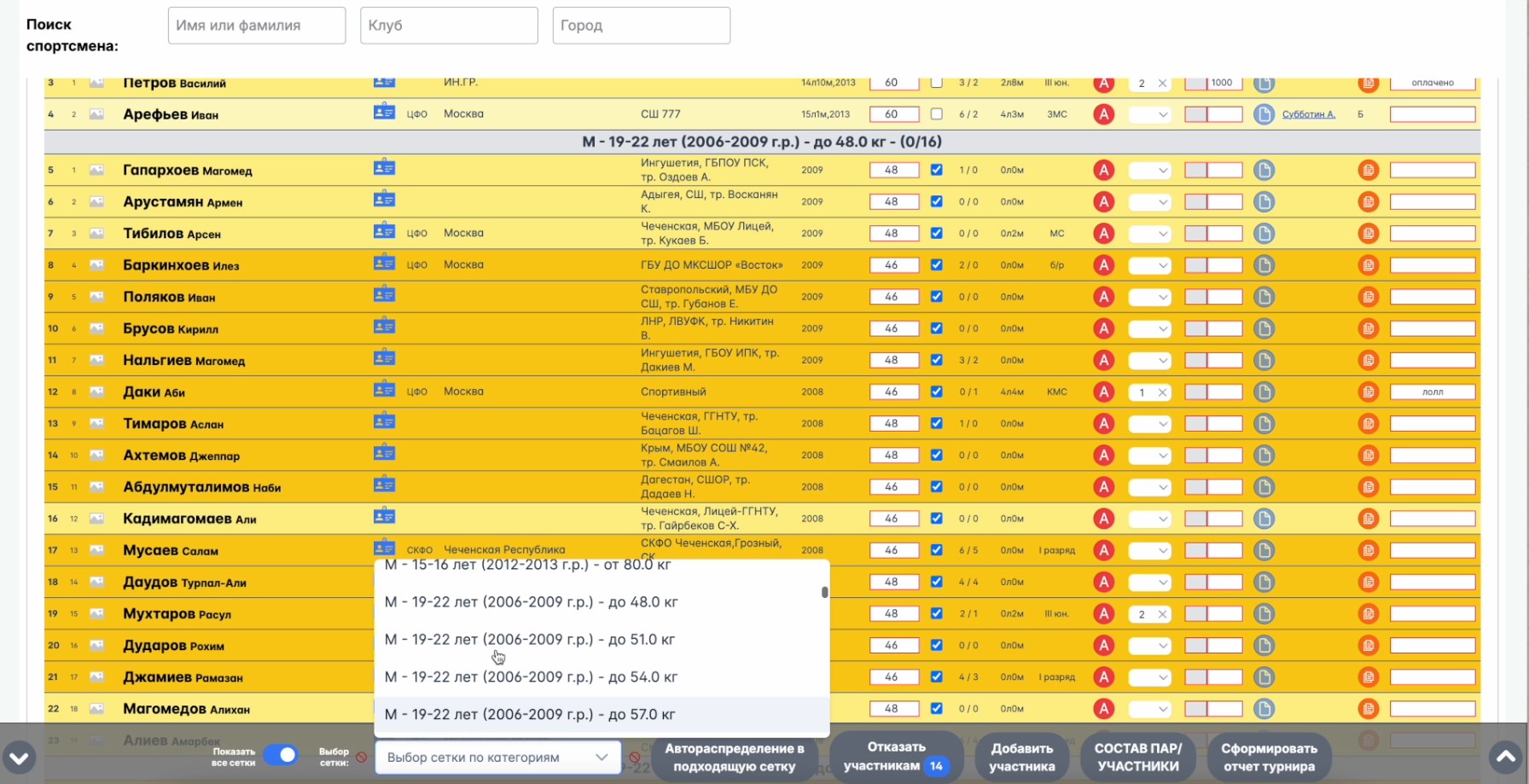
Select the weight category from the list at the bottom of the screen into which you want to place the selected athletes.
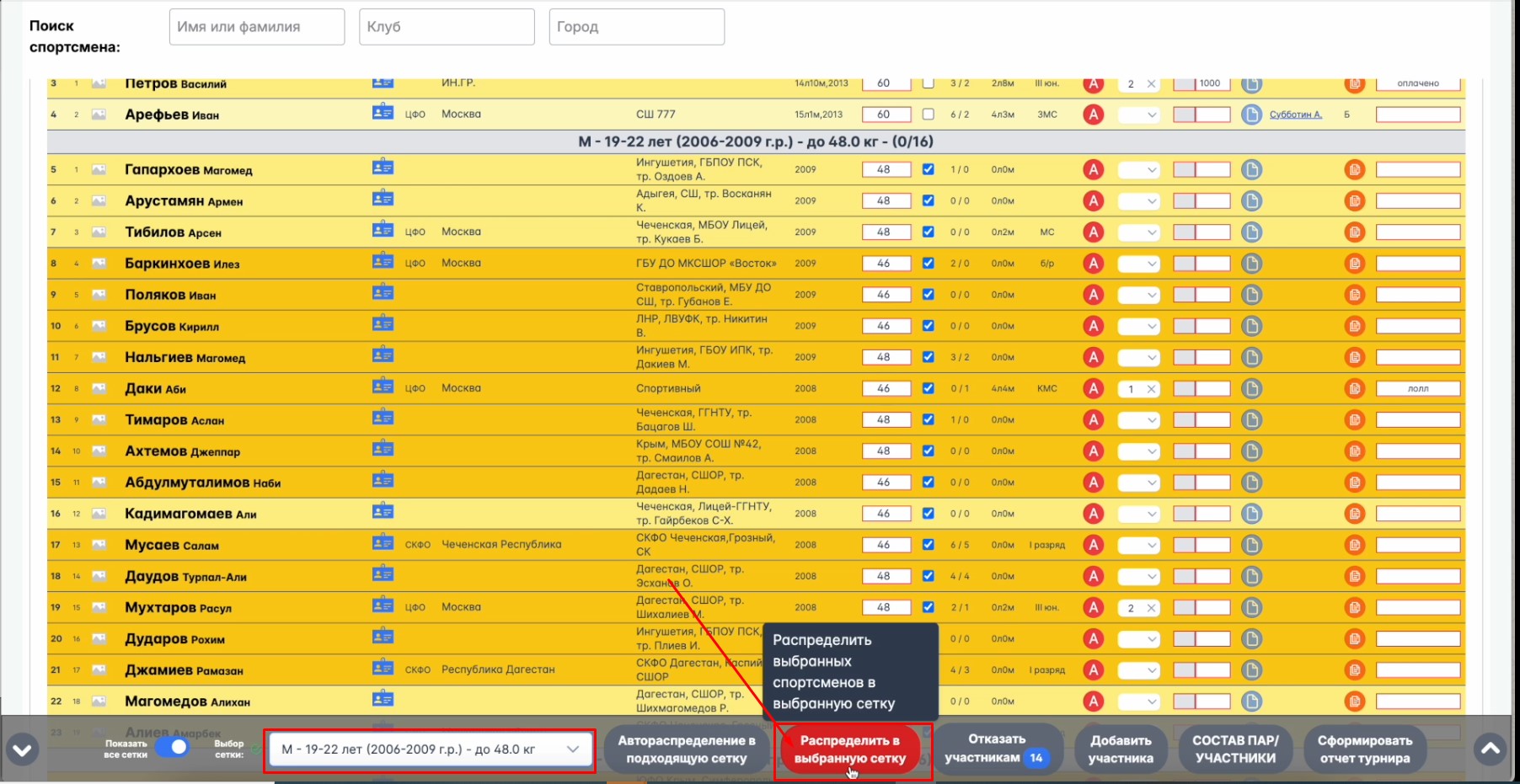
Click the "Assign to Selected Bracket" button.
Step 3. Form pairs within the bracket
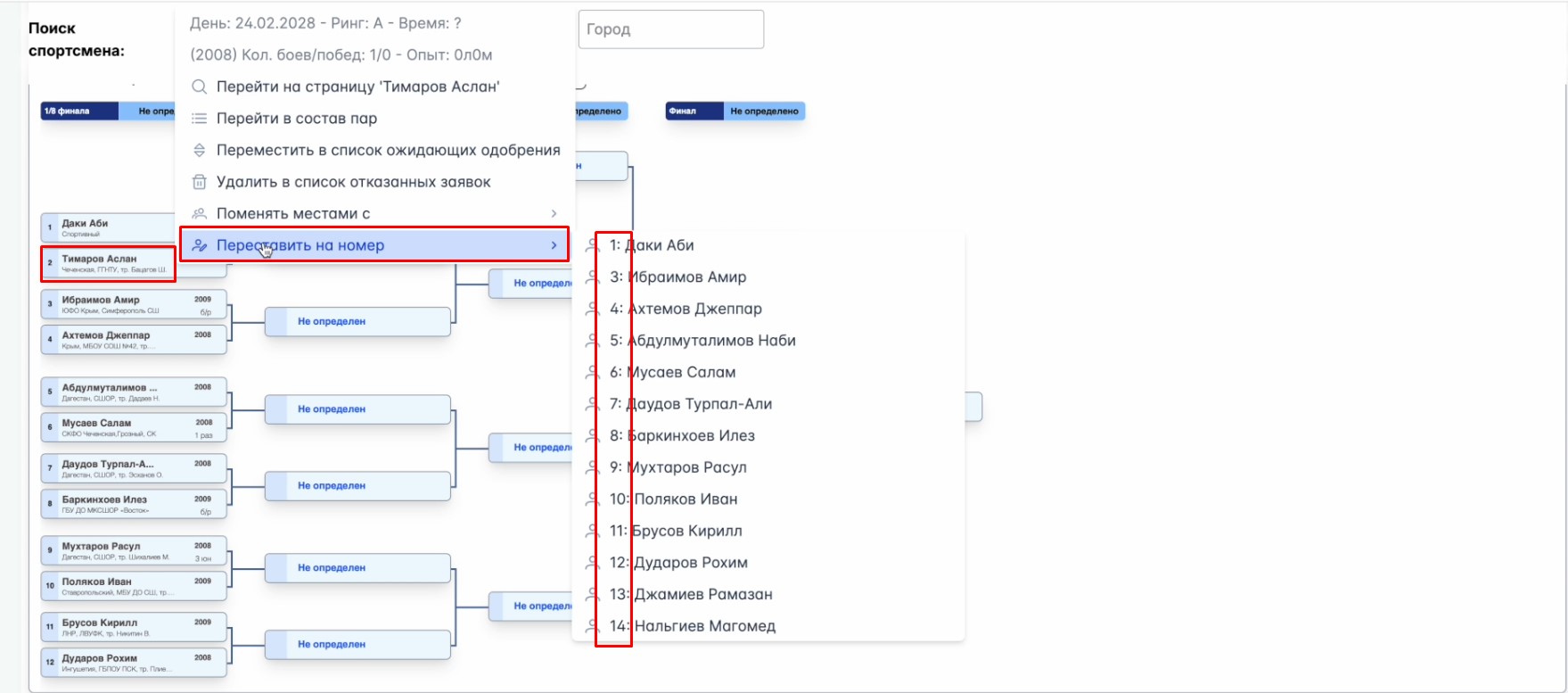
Once athletes have been distributed, you can arrange the fighters within the bracket in detail. Go to "Pair Composition," right-click on the block with the athlete's full name that you want to move, and choose which pair to place them into — this way an athlete can be placed in any position in the bracket.
Important: moves within the bracket are available only until a result is entered. If even one pair in the weight category already has a result, moves within the bracket are blocked — until that pair's result is cancelled.
Step 4. Mark the seeds
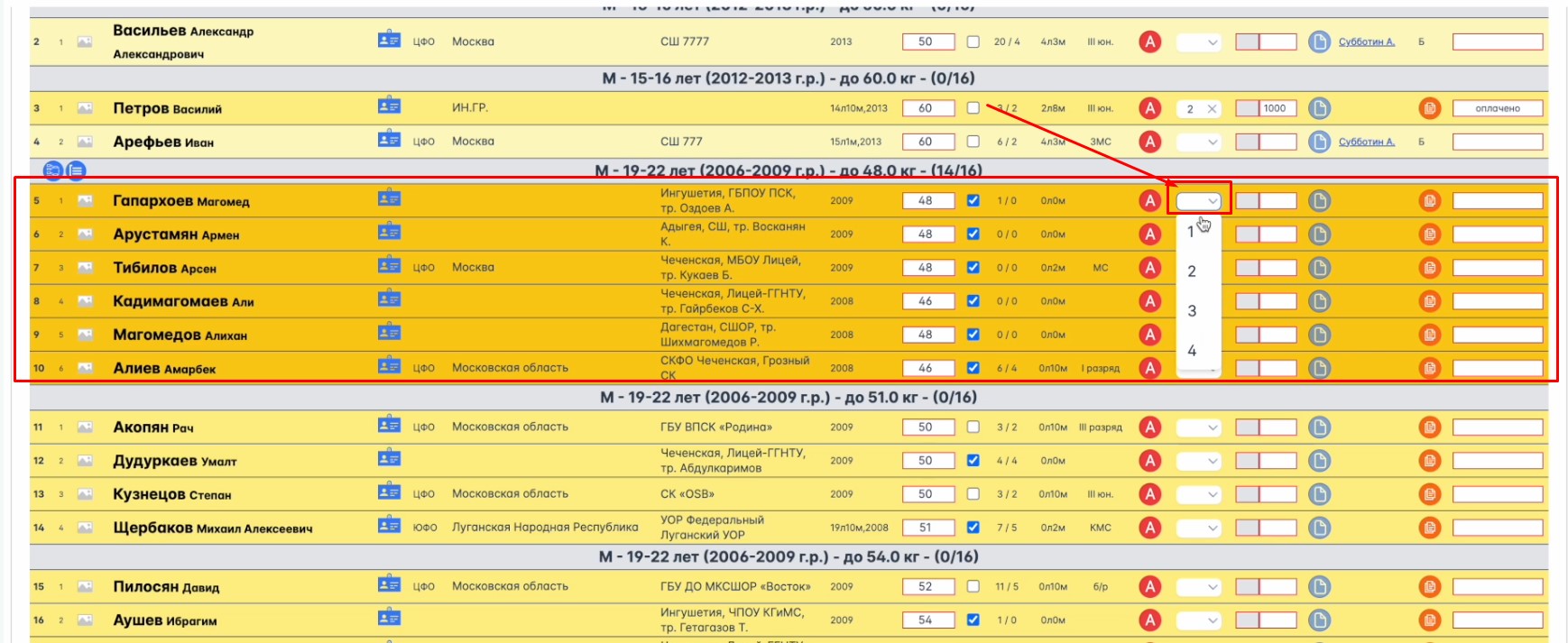
If there are athletes among the participants who are clearly stronger, use the "seed ranking" tool — it must be set before building the brackets, at the draw stage. Choose from the drop-down list the number under which you want to mark the seed before distributing the boxers into the bracket.
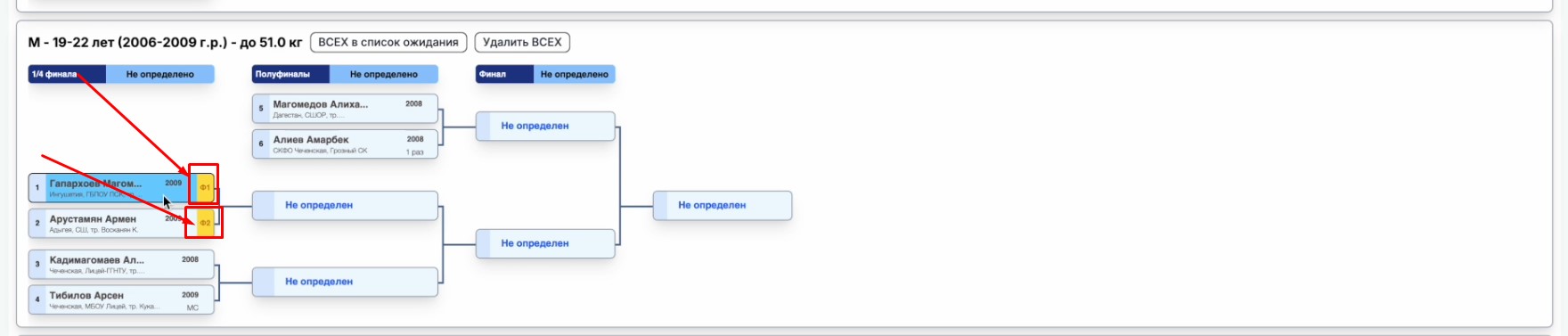
This makes it easier to navigate at the pairing stage — the "seed 1" and "seed 2" markers are visible directly in the bracket.
Step 5. Automatic distribution
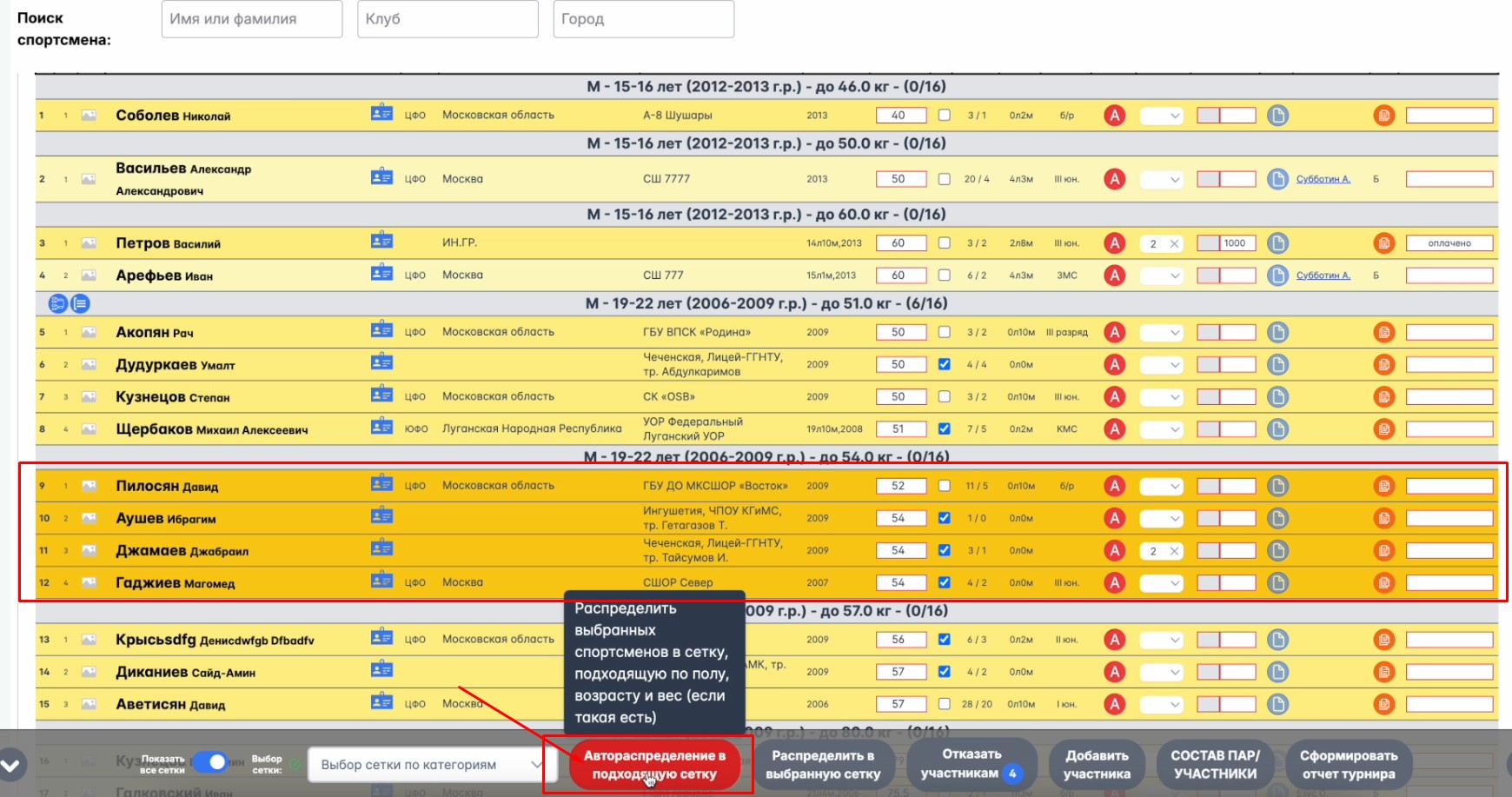
If the data is up to date and there are no clear seeds among the participants in the weight category who need to be kept apart until the final, it is more convenient to use the "Auto-distribute into the matching bracket" function.
Quick navigation and the white list
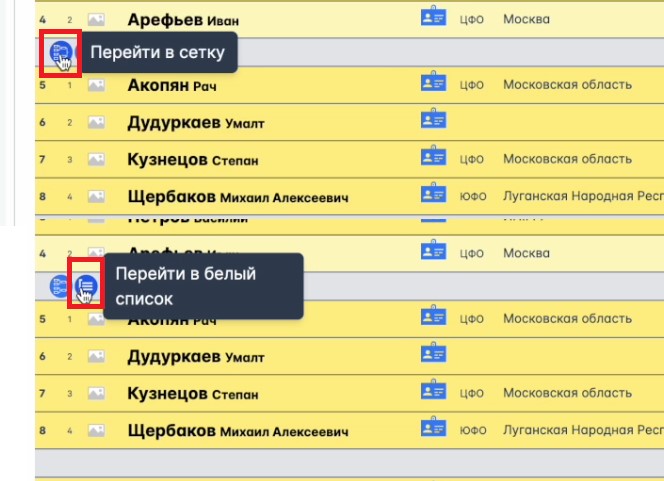
At the pairing stage, quick navigation between sections is available — once athletes have been distributed into the bracket, you can jump with a single click to the completed bracket or to the white list.
The white list duplicates information from the brackets: it collects data on the tournament's already-approved participants, with the option to view details for each one.