Registering and completing an athlete profile
ВидеоинструкцияAthlete registration
The full cycle from your first registration to a complete athlete profile: account, personal details, sporting career and additional page features.
Step 1. Go to registration
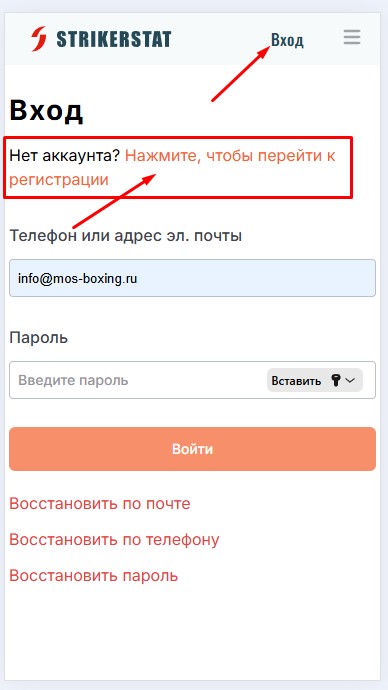
Open the service's home page at strikerstat.com and click the "Sign in" button in the top right corner of the screen.
Since you don't have an account on the platform yet, click the "Click to go to registration" link under the "Sign in" heading.
Step 2. Create an account
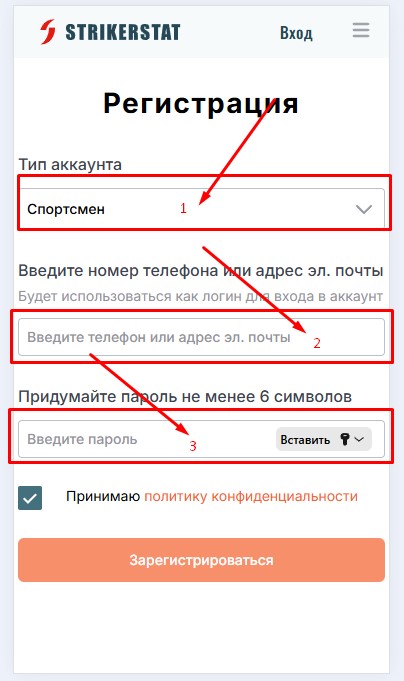
Choose the account type "Athlete", enter a mobile phone number or email address (this will become your login for signing in and will be needed to recover access), and choose a password of at least 6 characters.
All that's left is to accept the privacy policy and click "Register". After confirming via the link sent by email or the SMS code, you'll land in your "Personal account".
Step 3. Fill in the basic information
The "Personal account" has five tabs: "Basic", "Career", "Documents", "Sign-in" and "Applications". Let's go through the "Basic" tab — it is divided into three parts.
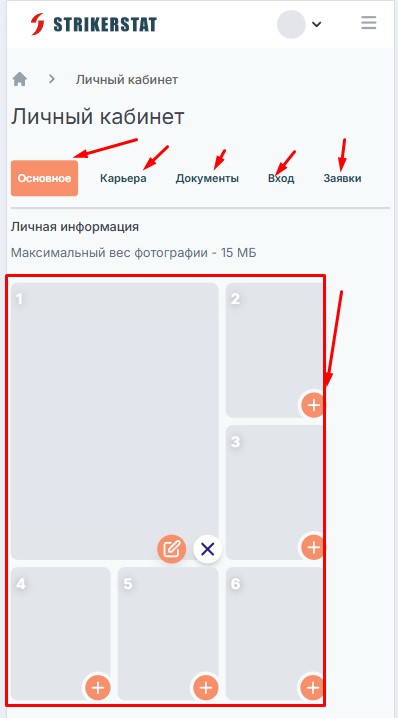
First, you can upload up to 6 photos — the maximum file size is 15 MB.
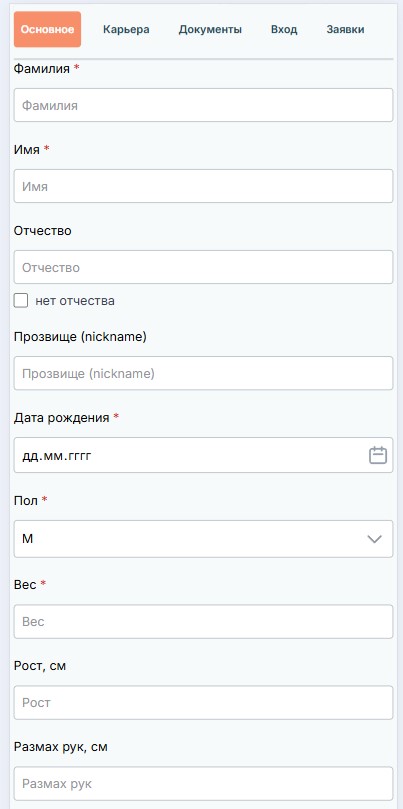
Next come the personal details. Required fields are marked with a red asterisk: last name, first name, date of birth, gender and weight. The middle name (patronymic) can be left blank — there is a separate checkbox "no patronymic" for this. A nickname is also optional.
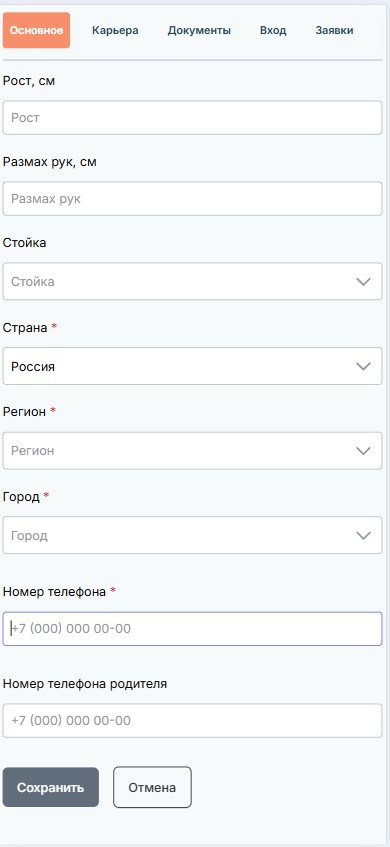
Height, arm span and stance are optional. But country, region, city and phone number are required again. For athletes under 18, there is a separate field for a parent's phone number.
Completed data is saved with the "Save" button at the bottom of the form.
Step 4. Enter your sporting career
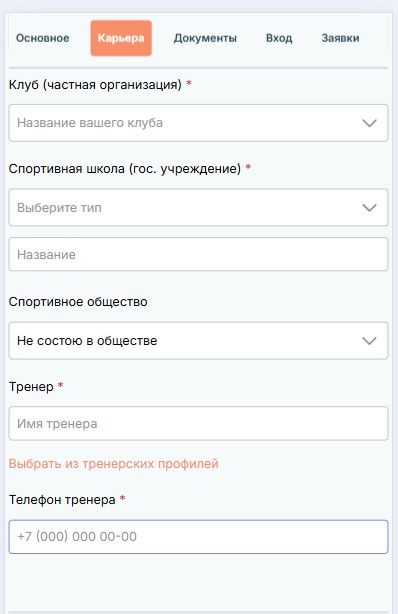
On the "Career" tab, enter your club, sports school (a state institution) and, if you belong to one, your sports society.
You can enter a coach manually by name, or select one from coach profiles already registered on the platform via the "Choose from coach profiles" link — in that case it's enough to provide their phone number.
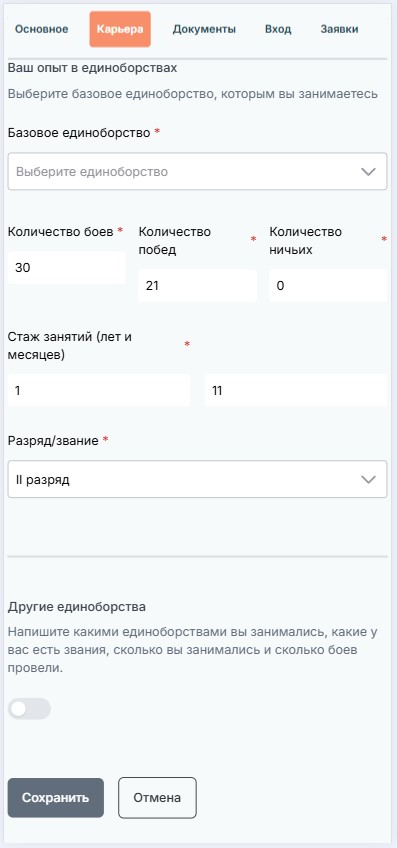
Below that is the "Your experience in combat sports" section: primary discipline, number of bouts, wins and draws, years of training and rank/title — all fields are required.
The "Other combat sports" toggle lets you additionally describe experience in other sports: how many bouts you've had and what titles you hold.
This data is enough to click "Create profile".
Step 5. Additional profile features
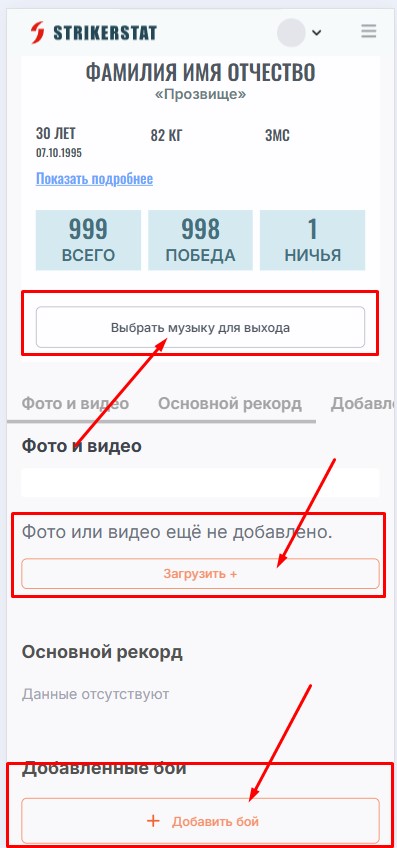
The profile is now ready and immediately shows statistics: number of bouts, wins and draws. The "Choose ring-walk music" button lets you pick one of the offered tracks to walk out to.
In the "Photos and videos" tab you can later upload additional photos and videos, and in the "Added bouts" tab you can add bouts fought outside the platform.
Two more tabs in the "Personal account" have been left out here: on "Documents" you upload a brain MRI, a certificate from a sports medicine clinic, a boxer's passport and a classification record book, and on "Sign-in" you can change your email, phone number or account password at any time.