Add participants to a competition
There are three ways to add a participant to a tournament:
- The athlete submits their own application after creating a StrikerStat account.
- The coach submits an application on behalf of a student, using their own account.
- The organizer adds participants to the tournament directly.
Let's look at the third option in detail.
Step 1. Open the participant-adding screen
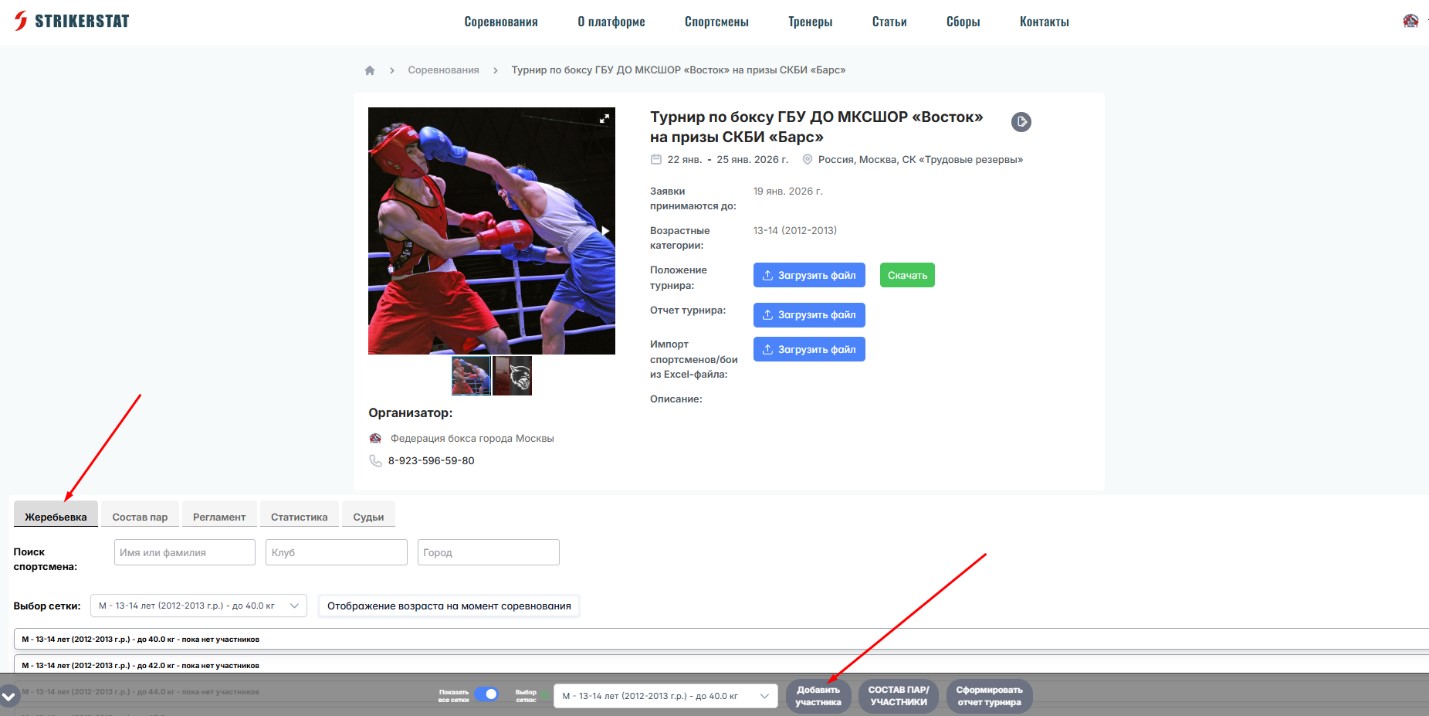
On the tournament page, in the "Bracket" section, click the "Add participant" button at the bottom of the page.
Step 2. Search for the boxer in the database
Enter the boxer's first and last name and click "Search". If the database has no boxer with that name, fill in the detailed form. Required fields:
- Last name, first name
- Country, region, city
- Organization
- Weight, date of birth
- Rank or title
- Number of bouts, wins, draws
- Boxing experience (years, months)
You can move between fields conveniently with the Enter key. There are also optional fields - patronymic, the boxer's phone number, coach details, experience in other combat sports - which can be skipped on initial entry. After entering the data, click "Save".
Step 3. Choose from the matching results
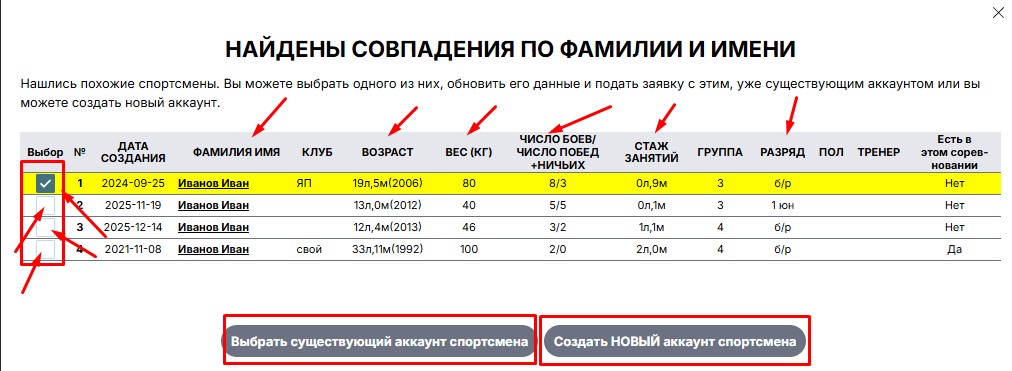
If the search returns a table with several boxers sharing the same first and last name, identify the right one by age, rank, weight, years of experience, or coach. Once you're sure it's the correct athlete, check the row and click "Select existing athlete account". If none of the options match, click "Create NEW athlete account".
Step 4. Get the login details

A manually added athlete will appear in the yellow "Awaiting tournament approval" list - their row will be highlighted slightly. The red button on the right of that row copies the login and password for the new account to the clipboard - you can paste them using the right mouse button or Ctrl+V.